
Building your ideal gaming PC doesn’t have to be complicated. Whether you’re upgrading from an older system, buying your first gaming computer or creating a high-performance setup for competitive gaming, the XDS Computers PC Configurator allows you to customise your gaming PC according to your requirements and budget.
From choosing your processor and graphics card to selecting memory, storage, cooling and your preferred case, you can explore available components and put together a personalised gaming system.
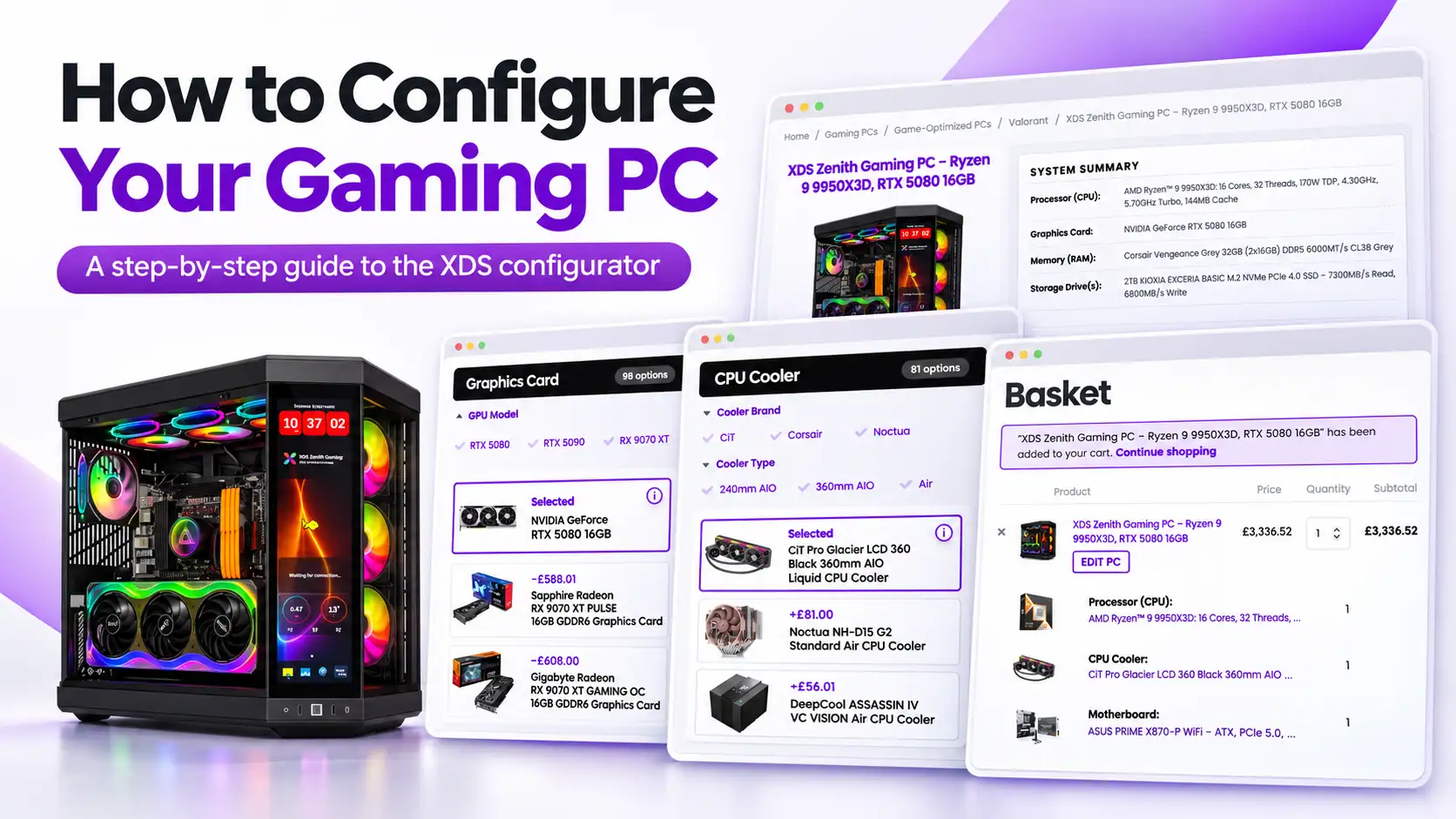
In this step-by-step guide, we’ll walk you through how to configure your gaming PC on the XDS website, understand component compatibility, review your specifications and check your final price before ordering.
Step 1: Choose Your Starting Gaming PC
The first step is to choose a gaming PC that closely matches the performance level and budget you’re looking for.
Rather than selecting every component from scratch, you can begin with an existing XDS gaming PC configuration and customise the components to suit your needs.
For this walkthrough, we’ll use the XDS Nova Gaming PC, featuring an AMD Ryzen 5 7500 processor and NVIDIA GeForce RTX 5060 Ti 8GB graphics card.
Start configuring the XDS Nova Gaming PC
Once you open the product page, you’ll find the system’s customisation sections, allowing you to explore alternative components and upgrades.
Tip: Choosing a system close to your desired specification makes the customisation process easier and helps you focus on the upgrades that matter most.
Suggested screenshot 1: XDS Nova product page showing the system name and beginning of the component configurator.
Step 2: Choose Your Gaming PC Case
Your case determines the appearance of your gaming PC and plays an important role in airflow, cooling and component accommodation.
The first configuration section is Case, where you can explore available chassis options.
The configurator provides filters including:
- Case Brand: Browse manufacturers such as Corsair, NZXT, Lian Li, Fractal Design and others.
- Case Colour: Choose from black, white, grey and other available finishes.
Use the available selection control to explore the cases offered for your build.
If you prefer RGB lighting and a modern appearance, consider a tempered-glass case with well-designed airflow. For a quieter, more understated system, a traditional case may be more suitable.
Remember that the case must have sufficient space for your motherboard, graphics card and cooling system.
Step 3: Select Your Processor (CPU)
The processor is responsible for running game logic, managing instructions and handling many of your PC’s everyday tasks.
Navigate to Processor (CPU) to explore the available processor options.
The XDS configurator includes useful filters such as CPU Cores, CPU Generation and CPU Series.
For example, AMD Ryzen processors are available across several performance categories:
- Ryzen 5: Excellent for everyday gaming and value-focused configurations.
- Ryzen 7: A strong choice for enthusiast gaming and high-refresh-rate performance.
- Ryzen 9: Ideal for demanding gaming, content creation and multitasking.
For maximum gaming performance, AMD Ryzen X3D processors are also worth considering.
When upgrading your CPU, remember that the motherboard must support the selected processor. For example, AMD Ryzen AM5 processors require a compatible AM5 motherboard.
Our recommendation: Choose the processor based on how you plan to use your PC rather than automatically selecting the most expensive model.
Step 4: Configure Your CPU Cooling and Motherboard
CPU Cooling
The CPU Cooler section lets you explore air cooling and liquid cooling options.
Available filters include cooler brand, colour and type, with categories for air cooling, 240mm AIO liquid cooling and 360mm AIO liquid cooling.
A quality air cooler can be sufficient for many gaming PCs, while premium cooling solutions may be appropriate for more demanding processors.
The configurator also includes a separate CPU Thermal Paste section where applicable.
Motherboard
Next, open the Motherboard section.
You can filter options by motherboard brand and chipset.
Your motherboard determines processor compatibility and features such as supported memory, storage expansion, USB connectivity and networking.
For an AMD AM5 gaming PC, compatible motherboard families include B650, B850 and X870, depending on your processor and requirements.
Important: Always ensure your selected motherboard supports your processor and memory before finalising the configuration.
Suggested screenshot 2: CPU Cooler and Motherboard sections showing component selection controls and filters.
Step 5: Select Your Memory (RAM)
The Memory (RAM) section allows you to explore different memory configurations.
The XDS website provides filters for:
- Memory Capacity: Choose from available capacities such as 16GB, 32GB and 64GB.
- Memory Lighting: Select RGB or non-RGB memory.
- Memory Speed: Compare available memory frequencies.
For most modern gaming systems, 32GB DDR5 RAM is an excellent choice, offering sufficient capacity for gaming, multitasking and everyday applications.
Users who regularly stream, edit videos or run demanding professional applications may benefit from 64GB or more.
If you enjoy RGB lighting, selecting illuminated memory modules can also complement your case and cooling design.
Step 6: Choose Your Graphics Card (GPU)
Your graphics card is one of the most important components in a gaming PC, particularly when playing at higher resolutions or using demanding graphics settings.
Open the Graphics Card section to explore the available GPU options.
You can use the configurator’s filters to narrow your selection by:
- GPU Model: Such as NVIDIA RTX 5060, RTX 5070, RTX 5070 Ti or RTX 5080.
- GPU Brand: Including ASUS, Gigabyte, MSI, Palit, PNY and other manufacturers.
- GPU VRAM: Compare available graphics memory capacities.
AMD Radeon graphics cards are also represented among the available model filters.
For 1080p gaming, a mid-range graphics card may be an excellent choice. For 1440p gaming, a more powerful GPU can provide additional performance, while premium cards are especially attractive for 4K gaming.
When selecting a graphics card, consider the games you play, your monitor resolution and your target frame rate.
Tip: Spending more on a graphics card can often provide a greater gaming performance improvement than upgrading to a much more expensive processor.
Suggested screenshot 3: Graphics Card section displaying GPU Model, GPU Brand and GPU VRAM filters.
Step 7: Configure Your SSD Storage
Modern games can occupy significant storage space, so selecting the right SSD capacity is essential.
The XDS configurator includes a Primary Storage – PCIe M.2 NVMe section where you can explore different SSD options.
You can filter by storage brand, capacity and PCIe generation.
For most gaming PCs, we recommend considering:
- 1TB NVMe SSD: Suitable for Windows, applications and a smaller game library.
- 2TB NVMe SSD: A great balance of capacity and convenience for modern gaming.
- 4TB NVMe SSD: Ideal for extensive game collections and large files.
A separate Secondary Storage section is also available for customers who require additional storage.
Step 8: Choose Your Power Supply and Additional Components
The Power Supply (PSU) provides electricity to your gaming PC’s components.
The configurator offers PSU filters for brand, efficiency rating and modular design.
When choosing a power supply, consider the requirements of your processor and graphics card, along with future upgrade plans.
For higher-performance graphics cards, a quality power supply with suitable capacity and connectors is essential.
You can also explore additional customisation sections, including:
- Braided PSU Cables
- Case Fans
- Wired Networking
- Wireless Networking
- Operating System
These options help you personalise your gaming PC’s appearance, connectivity and everyday functionality.
For example, adding appropriate case fans can improve airflow, while choosing a motherboard or wireless networking option with Wi-Fi can be useful if your PC won’t be connected directly to your router.
Step 9: Understand Component Compatibility Messages
When customising your gaming PC, component compatibility is an important consideration.
Not every processor, motherboard, cooler, case or power supply will work with every other component.
If the configurator displays a compatibility warning, restricts a selection or indicates that an option is unavailable, review the affected components before continuing.
Common areas to consider include:
Processor and motherboard compatibility: The CPU must use a supported socket, chipset and BIOS configuration.
Memory compatibility: The motherboard and processor must support the selected memory type and configuration.
Graphics card and case clearance: Larger graphics cards require sufficient physical space inside the case.
Cooling compatibility: The cooler must support the processor socket and fit within the chosen case.
Power supply requirements: The PSU must supply adequate power and provide the appropriate connections.
These are examples of potential compatibility considerations, not quotations of specific XDS warning messages.
If you’re unsure about a component combination or encounter an unexpected notice, contact XDS Computers before placing your order.
Our team can help review your selected configuration to ensure that the components are suitable for your intended build.
Step 10: Review Your Complete Gaming PC Specification
Before proceeding, take a few moments to review your selections.
Return through the configurator’s component sections and verify that the selected options match your requirements.
Pay particular attention to the processor, motherboard, graphics card, memory, storage, cooling, power supply and operating system.
Don’t forget the less obvious details, such as whether you need built-in Wi-Fi, additional SSD storage or a particular case colour.
The product page also includes sections for Warranty, Technical Support and Build Time, which are worth reviewing before ordering.
XDS systems include hardware-related technical support, and the product page currently states an estimated build time of 6–8 working days.
Tip: Check your complete configuration carefully now to avoid missing an important upgrade or selecting a feature you don’t need.
Step 11: Check the Final Price and Add to Basket
Once you’re satisfied with your gaming PC configuration, the final step is to review the cost.
Your selected components and upgrades can affect the overall price.
Make sure you check the current displayed price after making changes, and confirm the final order total, including any applicable VAT and delivery charges, in your basket or checkout.
The XDS Nova product page provides an Add to Basket button to proceed with your selected system.
Before completing your purchase, verify the order details, delivery information and chosen specifications.
If you’re happy with everything, you can continue through checkout to place your order.
Suggested screenshot 4: Final configuration area, displayed price and Add to Basket button.
What Happens After You Order Your Custom Gaming PC?
Once your order is accepted and processed, your custom gaming PC enters the build preparation process.
At XDS Computers, our systems are professionally assembled by experienced technicians in Manchester.
The build process includes component allocation, assembly, cable management, stress testing and quality control before dispatch.
We aim to ensure each PC is carefully assembled and tested before it reaches your doorstep.
Our systems also come with a five-year warranty, including five years of labour cover and two years of parts cover, subject to the applicable warranty terms and component exclusions.
Frequently Asked Questions
Can I customise every component of my gaming PC?
The XDS configurator provides a wide range of component categories, allowing you to customise major parts of your system. Available choices depend on the selected starting PC, compatibility and current component availability.
Will upgrading components increase the price?
Some upgrades may increase the system price, while choosing a different component may reduce it. Always review the updated price and basket total before purchasing.
What if I’m unsure which processor or graphics card to choose?
Our team can help you understand the differences between available components and recommend a balanced system based on your games, applications and budget.
Do XDS gaming PCs include a monitor, keyboard and mouse?
Monitors are not normally included. Keyboards and mice are not typically included either, although the product page explains that a basic set may be requested in the order notes at no additional charge.
Can I ask for advice before placing my order?
Absolutely. If you need assistance choosing components or understanding compatibility, you can contact XDS Computers for advice before ordering.
Ready to Build Your Perfect Gaming PC?
Choosing your ideal gaming computer should be an enjoyable experience.
With the XDS Computers configurator, you can explore component options and create a personalised gaming system without needing to assemble it yourself.
Whether you’re looking for an affordable gaming PC or a premium system with high-performance components, we’re here to help you make the right choices.
Start building your custom gaming PC today.
Configure the XDS Nova Gaming PC on XDS Computers
Your perfect gaming PC starts with the right configuration.