

Get the latest tech news and updates delivered to your inbox.
How to Choose an NVIDIA Deep Learning Workstation
Choosing an NVIDIA deep learning workstation starts with understanding the work you want the system to perform. Model development, computer vision, data preparation and local experimentation can place very different demands on a PC. Rather than selecting components in isolation, plan the GPU, system memory, processor, storage, cooling and upgrade path around your software and datasets.
XDS Computers presents AI-oriented workstations alongside configurable custom PC systems. This guide explains the main decisions to consider before exploring an AI workstation or build-your-own route.
Start with the workload
Before comparing hardware, write down how you expect to use the workstation. Relevant workloads may include:
- Developing and testing machine-learning models locally.
- Training or fine-tuning models with an NVIDIA GPU.
- Preparing datasets and running data-science workflows.
- Working with image, video or other computer-vision data.
- Running several development environments, notebooks or virtual machines.
- Using the computer for general productivity, content creation or gaming as well as AI development.
The most important distinction is often between experimentation and sustained, demanding workloads. A developer testing smaller projects may prioritise a balanced system and room to upgrade. A workstation handling large datasets or repeated GPU-based tasks may need more graphics memory, system RAM and storage capacity from the outset.
Choosing the GPU and graphics memory
For many deep-learning workflows, the graphics card is the central component. NVIDIA GPUs are commonly considered for AI development because the target software may be designed around GPU acceleration. However, the right choice depends on the models, datasets and applications you intend to run; a particular GPU should not be selected solely because it has a higher product tier.
Pay close attention to GPU memory. It affects the size of models, batches, images and intermediate data that can be handled without moving work to slower system memory. If a project regularly exceeds available graphics memory, reducing batch sizes or changing the workflow may be necessary. That can affect how conveniently you work, even when the rest of the PC is capable.
Ask these questions before choosing a graphics card:
- What model sizes and input resolutions do you expect to use?
- Will you train models, run inference, or do both?
- Will computer-vision projects involve images, video or multiple data streams?
- Do your current tools specify a graphics-memory requirement?
- Do you need the workstation to support other graphics-heavy work?
Specific GPU recommendations should follow verified software requirements and the final system configuration. XDS can present NVIDIA-based system options, but the appropriate graphics card remains a workload-led decision rather than a universal specification.
How much system memory does a deep learning workstation need?
System RAM supports dataset preparation, data loading, development tools, browsers, containers and background applications. It is separate from the memory on the graphics card, so increasing RAM does not replace the need for suitable GPU memory.
A smaller development environment may be comfortable with a moderate dual-channel kit, while larger datasets, several applications or professional data-science workflows can justify a higher capacity. Consider both your present workload and the likely size of future projects.
Capacity is usually the first question, followed by compatibility and configuration. Examples visible in the XDS range include 32GB, 64GB and 128GB DDR5 kits. A 64GB DDR5 kit may be relevant to a system that needs more headroom than a typical gaming configuration, while a 128GB DDR5 kit is a higher-capacity option to assess for heavier local data workloads.
Do not assume that more RAM is automatically better. Check the motherboard’s supported memory type and capacity, the number of populated slots, and whether the planned modules suit the rest of the platform.
CPU, motherboard and PCIe planning
The CPU handles many tasks around the GPU: data preparation, file handling, compilation, application overhead and general multitasking. A workstation used for computer vision or data processing may benefit from a stronger processor, but the balance should reflect how much of the workload is actually CPU-bound.
The motherboard provides the platform for the rest of the system. Check:
- Processor socket and chipset compatibility.
- Supported DDR4 or DDR5 memory, depending on the selected platform.
- Available PCIe slots and their physical spacing.
- M.2 and other storage connections.
- Network, USB and display connectivity required by your workflow.
- Clearance for the selected graphics card, cooling solution and case.
For an example of the type of platform detail to review, the ASUS ROG Maximus Z890 Hero motherboard lists an Intel LGA1851 platform, DDR5 support, PCIe 5.0 and multiple M.2 connections. These specifications do not make it automatically suitable for every AI build, but they illustrate why expansion and connectivity should be checked before ordering a complete system.
Storage for datasets, environments and project files
Storage planning is easy to underestimate. Datasets, model checkpoints, development environments, source files, exports and applications can consume capacity quickly. An NVMe SSD can provide a responsive foundation for the operating system, tools and active projects, while a second storage device may help separate system files from datasets or project work.
Start by estimating the size of your current datasets and keeping space for temporary files and future projects. Also consider how data is backed up. A workstation’s internal storage should not be treated as a complete backup strategy.
For example, XDS lists a 2TB PCIe 4.0 NVMe SSD. Capacity and interface are useful points to compare, but the correct storage layout depends on the size and location of your datasets and whether additional drives are needed.
Cooling, power and case considerations
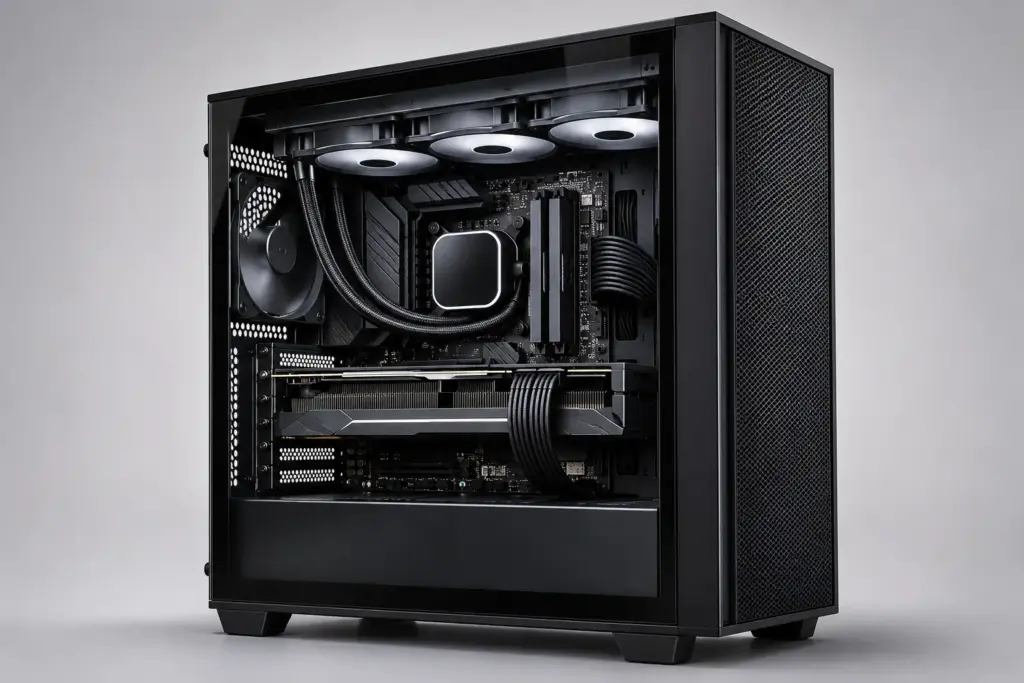
AI development can involve sustained processing rather than short bursts. The case, cooling system and power supply therefore need to be selected as a group with the CPU and graphics card. Avoid treating cooling as an afterthought, particularly in a compact build where airflow and component clearance may be more constrained.
Review the case’s supported motherboard size, graphics-card clearance, radiator or air-cooler clearance and storage mounting options. Then confirm that the power supply is appropriate for the complete configured system. Exact power and thermal requirements vary with the components, workload and operating conditions, so they should be checked for the chosen build rather than applied as universal rules.
Custom deep learning workstation or pre-configured system?
A pre-configured AI workstation can simplify the initial decision by grouping compatible components around a stated use case. It may suit buyers who already understand their preferred workload and want a defined starting point.
A custom deep learning workstation is more useful when your requirements are specific. You can prioritise graphics memory, system RAM, storage capacity, case size or expansion potential instead of paying for a general-purpose balance that does not match your work. Configuration is particularly valuable when the workstation must serve more than one role, such as AI development alongside content creation or gaming.
Whichever route you choose, check the complete specification rather than focusing on the graphics card alone. Processor, memory, storage, motherboard, cooling and power supply all affect how practical the finished system is to use and expand.
AI workstation versus gaming PC
An AI workstation and a gaming PC can share major components, but their priorities may differ. A gaming PC often emphasises graphics performance, responsive play and a visually focused case design. An AI workstation may place greater emphasis on graphics memory, system RAM, sustained workloads, dataset storage and expansion.
There is no universal dividing line. A gaming PC can be a sensible development machine for some projects, especially when gaming is also a priority. A workstation becomes the stronger fit when your software, datasets or working habits require more memory, storage, expansion or sustained-use planning than a gaming-focused configuration provides.
Practical configuration checklist
- List the AI, machine-learning, data-science and computer-vision applications you expect to use.
- Identify the required GPU features and graphics-memory capacity from your software and project needs.
- Estimate dataset, environment, checkpoint and project-file storage.
- Choose system RAM based on active data and multitasking requirements.
- Balance CPU capability with the amount of preprocessing and general development work involved.
- Check motherboard expansion, PCIe layout, memory support and storage connections.
- Confirm case clearance, cooling and power-supply suitability for the complete build.
- Decide whether a pre-configured AI workstation or build-your-own system gives you the right flexibility.
Explore an NVIDIA-based workstation configuration
The best starting point is the workload, not a generic specification. XDS Computers presents AI-oriented and specialised PC options as well as configurable systems for buyers who need to shape a machine around their software and projects. Explore the available workstation routes or use the build-your-own path to review the balance of GPU, memory, storage and platform features before committing to a configuration.