

Get the latest tech news and updates delivered to your inbox.
How to Choose a Custom PC for Content Creation
Choosing a custom PC for content creation is easier when you begin with the work you actually do rather than selecting components in isolation. Video editing, motion graphics, 3D design, animation and rendering can place different demands on the processor, graphics card, memory and storage. A sensible configuration should support your main workload today while leaving room for future projects and upgrades.
XDS Computers presents content-creation systems alongside configurable custom PCs, so you can start with a pre-configured direction or build a system around your own priorities. This guide focuses on that selection process rather than repeating a general video-editing checklist.
Start with your creative workload
The best PC build for content creation depends on how your time is divided between applications and tasks. Consider your typical project size, the type of media you handle and whether you work mainly in real time or through longer exports and renders.
- Video editing: Prioritise a balanced processor, sufficient memory, fast project storage and a capable graphics card. High-resolution footage, layered timelines and effects can increase the importance of each area.
- Motion graphics: Compositing, animation and effects may benefit from strong processor performance, plenty of RAM and GPU acceleration where supported by the software you use.
- 3D design and animation: Viewport work, texturing and scene complexity can make graphics memory, system memory and storage capacity important considerations.
- 3D rendering: The ideal balance depends on whether your renderer relies mainly on the CPU, the GPU or a combination of both. Confirm the requirements of your chosen software before finalising a configuration.
- Mixed creative work: If you edit video, create motion graphics and work with 3D scenes, avoid optimising the entire system around only one task. A balanced configuration is usually more practical.
Choosing the processor
The processor affects timeline responsiveness, encoding, simulation, scene preparation and many general creative tasks. For a PC for video editing, look beyond the processor name and consider the wider system: the graphics card, memory capacity, cooling and storage all contribute to the working experience.
Higher-end processors can make sense when you regularly handle complex projects, frequent exports, large scenes or several demanding applications at once. A more moderate processor may be suitable when your work is lighter or when more of the budget needs to go towards the graphics card, memory or storage.
AMD Ryzen and Intel Core platforms are both represented in XDS configurations. The choice between an AMD or Intel PC for video editing should be guided by your software, preferred features, budget and the complete configuration rather than by the CPU brand alone. XDS build-your-own systems provide routes for configuring AMD or Intel-based PCs around the rest of your component choices.
How much memory does a content-creation PC need?
Memory capacity affects how comfortably your system handles large projects, multiple applications and complex assets. A video editing PC used for short, straightforward projects may not need the same memory capacity as a workstation handling large timelines, high-resolution media, 3D scenes or extensive multitasking.
When choosing RAM, consider:
- The resolution and size of your video projects.
- Whether you keep editing, graphics, browsing and asset-management applications open together.
- The size of your 3D scenes, textures and animation projects.
- Whether you expect your workload to become more demanding over time.
Capacity is only one part of the decision. Check the selected motherboard and platform when planning future expansion, and avoid assuming that every memory kit or capacity will suit every system. A configurable PC gives you the opportunity to select a more appropriate starting point rather than relying on a fixed specification.
Graphics cards for editing, motion graphics and 3D work
A graphics card can help with GPU-accelerated effects, real-time previews, visualisation, viewport work and some rendering workflows. The right choice depends on the software and features you use, as well as the complexity of your projects.
NVIDIA GeForce RTX and AMD Radeon graphics cards are both available across gaming and custom PC categories. An NVIDIA GeForce RTX card may be worth considering where your creative applications make effective use of its supported GPU features. AMD Radeon can also be a suitable direction for some creative and 3D workloads. Always check the current software documentation before treating one graphics brand as universally better.
Graphics memory matters when working with detailed scenes, high-resolution textures or demanding visual projects. However, selecting the most powerful graphics card available is not always the best use of your budget if the rest of the system lacks sufficient memory, storage or processor capacity.
Plan storage around your projects
Custom PC storage options should reflect how you organise applications, source media, active projects and completed files. Separating these roles can make a configuration easier to manage, particularly when creative projects are large or involve many source files.
- System and applications: Use fast storage for the operating system and creative software.
- Active projects: Allocate suitable capacity for current timelines, scenes, caches and working files.
- Media and assets: Allow room for footage, textures, audio, project libraries and exports.
- Long-term capacity: Consider how quickly your projects accumulate and whether you need additional internal or external storage.
Some XDS workstation descriptions use separate NVMe drives for system and project storage, illustrating how storage can be planned around workflow rather than treated as one undifferentiated drive. The exact choice should still be matched to your files, software and budget.
Cooling, case size and upgrade flexibility
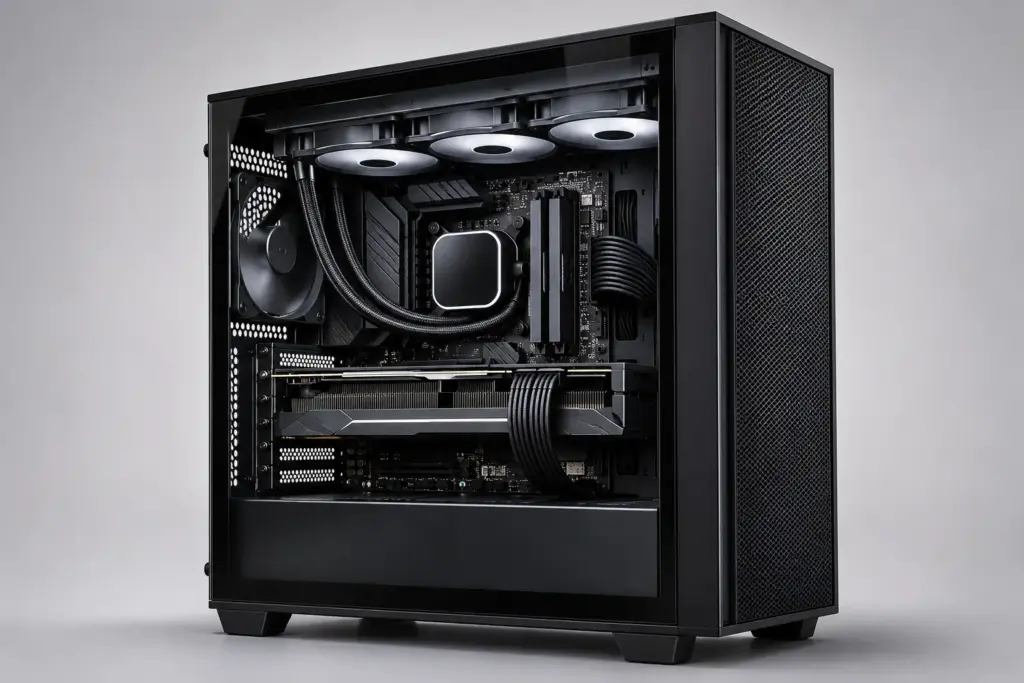
Creative workloads can keep a system busy for longer periods than occasional desktop use. When configuring a PC for video editing, motion graphics or rendering, consider the cooling solution, case airflow and available space for the selected components.
Case size also affects expansion. A compact system may suit a smaller workspace, while an ATX configuration can provide more room for storage, graphics cards and other future changes. Check component dimensions and motherboard support rather than assuming that a particular case will accommodate every upgrade.
The HYTE Y50 RGB is one example of an ATX case presented by XDS, with support for large graphics cards and 360 mm radiator positions according to its supplied specification. It is sold as a case, not a complete PC, so it should be considered as part of a wider configuration rather than as a ready-made content-creation system.
Pre-configured system or build your own PC?
A pre-configured content-creation PC is a useful starting point when its processor, graphics card, memory and storage already align with your main workload. It reduces the number of decisions you need to make and can make comparisons between systems more straightforward.
A build-your-own system is more appropriate when your requirements are specific. You may want to prioritise memory capacity, add separate project storage, choose a particular case style or balance CPU and GPU spending differently. XDS offers build-your-own AMD and Intel routes, including Essential, Performance and more specialised gaming-oriented templates. These are configurable starting points rather than fixed prebuilts, so review each available option carefully before checkout.
When should you consider a specialised workstation?
A specialised workstation may be worth considering when creative work is central to your professional or technical workflow, especially if you regularly use large scenes, complex assets, demanding project files or several applications at once. Workstation planning should start with the software and project requirements, not simply the highest specification available.
XDS presents content-creation systems for video editing, music production, 3D design and animation, alongside professional workstation categories. For example, the XDS TextureVault Workstation is described for very large textures, scenes and complex GPU assets, with a Ryzen 9 9900X, RTX PRO 4000, 128GB of memory and two separate NVMe SSDs. The XDS SimForge Workstation is described for multi-core geometry, physics simulation and large 3D projects. These descriptions indicate intended workload direction; they should not be treated as universal performance guarantees.
How to choose your XDS configuration
- List your main applications and creative tasks.
- Identify the projects that most often push your current computer.
- Decide whether processor performance, GPU capability, memory or storage is the main priority.
- Allow for project growth, especially larger footage libraries, scenes and assets.
- Compare a suitable pre-configured system with a build-your-own option.
- Check the final component list, platform, case, cooling and storage before ordering.
For a broader range of options, explore XDS custom PCs and workstations in the UK, or review the available build-your-own AMD and Intel systems. The aim is not to choose the most expensive computer, but to configure a balanced system that reflects how you create, edit, render and store your work.